> ## Documentation Index
> Fetch the complete documentation index at: https://docs.opnform.com/llms.txt
> Use this file to discover all available pages before exploring further.
# Use OpnForm with AI assistants through MCP
> Connect ChatGPT, Cursor, Claude Code, Codex, or another MCP client to OpnForm Cloud or a self-hosted OpnForm instance.
OpnForm includes a remote [Model Context Protocol](https://modelcontextprotocol.io) server. It lets AI assistants build forms from a conversation, show you a private preview, manage forms, and help you work with submissions.
The setup depends on whether you use **OpnForm Cloud** or a **self-hosted OpnForm instance**.
## Choose your OpnForm setup
The hosted MCP server is already enabled at:
```text theme={null}
https://api.opnform.com/mcp
```
You can start a private form draft without an OpnForm account. Connect your account with OAuth only when you want the assistant to save forms, manage existing forms, or read submissions.
If you are signed in to OpnForm, open **Settings → MCP & AI agents** to find the server URL and ready-to-copy instructions for your AI client. There is no activation switch for OpnForm Cloud.
Your MCP endpoint uses the API origin of your instance:
```text theme={null}
https://forms.example.com/mcp
```
MCP is disabled by default. An administrator must configure OAuth and enable MCP from **Settings → MCP & AI agents**. Self-hosted MCP connections always require an OpnForm account; guest draft creation is not exposed.
## Create a form with OpnForm Cloud
You can ask a compatible AI assistant to create a form before connecting your OpnForm account.
Explain the form's goal, audience, questions, and any requirements you already know. The assistant validates the definition before creating a private draft.
Open the preview returned by the assistant. Test the questions and flow, then ask the assistant to add, remove, or revise fields.
The preview is private and does not publish the form.
Select **Open in OpnForm** when you want to continue in the visual editor. You can customize the design before creating an account or signing in to save the form.
Complete OAuth when you ask the assistant to save the draft, manage your existing forms, or access submissions. OpnForm displays the requested connection before you approve it.
Guest draft links are private bearer links. Do not share them publicly. If a preview expires, ask the assistant to generate a fresh preview.
## Enable MCP on a self-hosted instance
### Prerequisites
Before you enable MCP, verify that your instance has:
* public HTTPS values for `APP_URL` and `FRONT_URL`;
* a valid Laravel Passport key pair;
* persistent storage for the Passport keys so existing OAuth connections survive container replacement;
* a trusted MCP client that supports remote streamable HTTP servers and OAuth.
Do not expose a production MCP endpoint over plain HTTP. Localhost URLs are suitable only for local client testing.
Sign in as an administrator, then open **Settings → MCP & AI agents**.
OpnForm verifies the public URLs and Passport keys. If a requirement is missing, the page identifies what you need to configure before activation.
Turn on **Enable MCP**.
 The status changes to **MCP is available** and the page displays your `/mcp` endpoint.
The switch is stored in the OpnForm database and applies without restarting the application. Until an administrator changes it, OpnForm uses `MCP_ENABLED` from the API environment as the default:
```dotenv theme={null}
MCP_ENABLED=false
MCP_OBSERVABILITY_ENABLED=true
```
Self-hosted instances use a strict authenticated flow. They expose validation and account-scoped MCP tools, but not the cloud guest draft endpoints.
## Connect an AI assistant
For OpnForm Cloud, use `https://api.opnform.com/mcp`. For a self-hosted instance, copy the endpoint displayed in **Settings → MCP & AI agents**.
The status changes to **MCP is available** and the page displays your `/mcp` endpoint.
The switch is stored in the OpnForm database and applies without restarting the application. Until an administrator changes it, OpnForm uses `MCP_ENABLED` from the API environment as the default:
```dotenv theme={null}
MCP_ENABLED=false
MCP_OBSERVABILITY_ENABLED=true
```
Self-hosted instances use a strict authenticated flow. They expose validation and account-scoped MCP tools, but not the cloud guest draft endpoints.
## Connect an AI assistant
For OpnForm Cloud, use `https://api.opnform.com/mcp`. For a self-hosted instance, copy the endpoint displayed in **Settings → MCP & AI agents**.
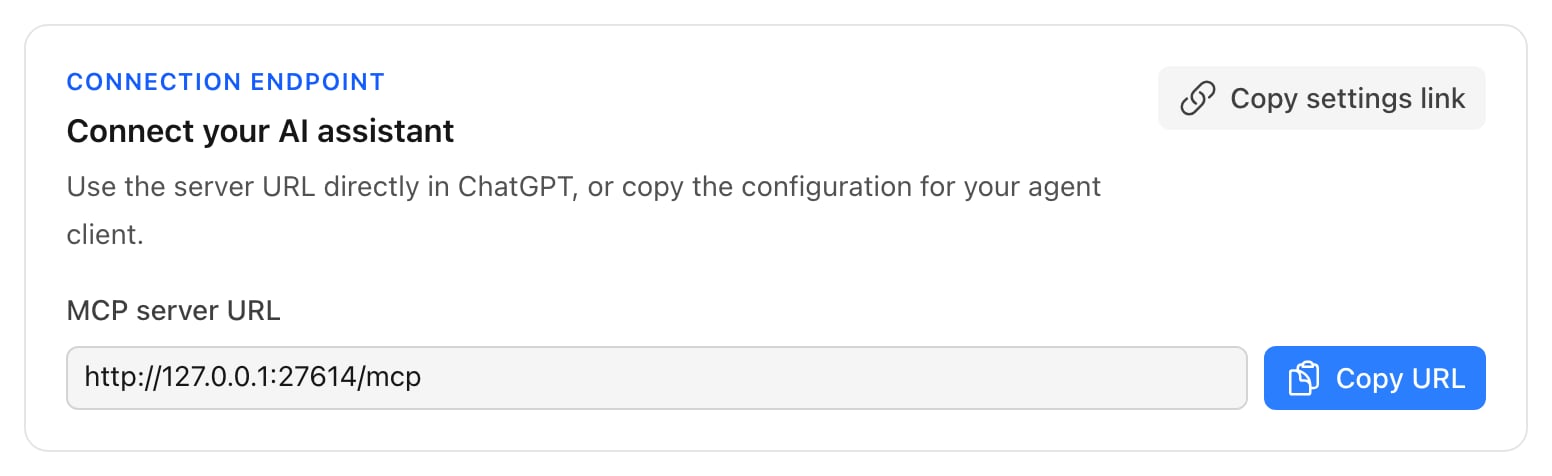 The settings page generates the correct command or configuration for your client. Select your client, then copy the displayed value.
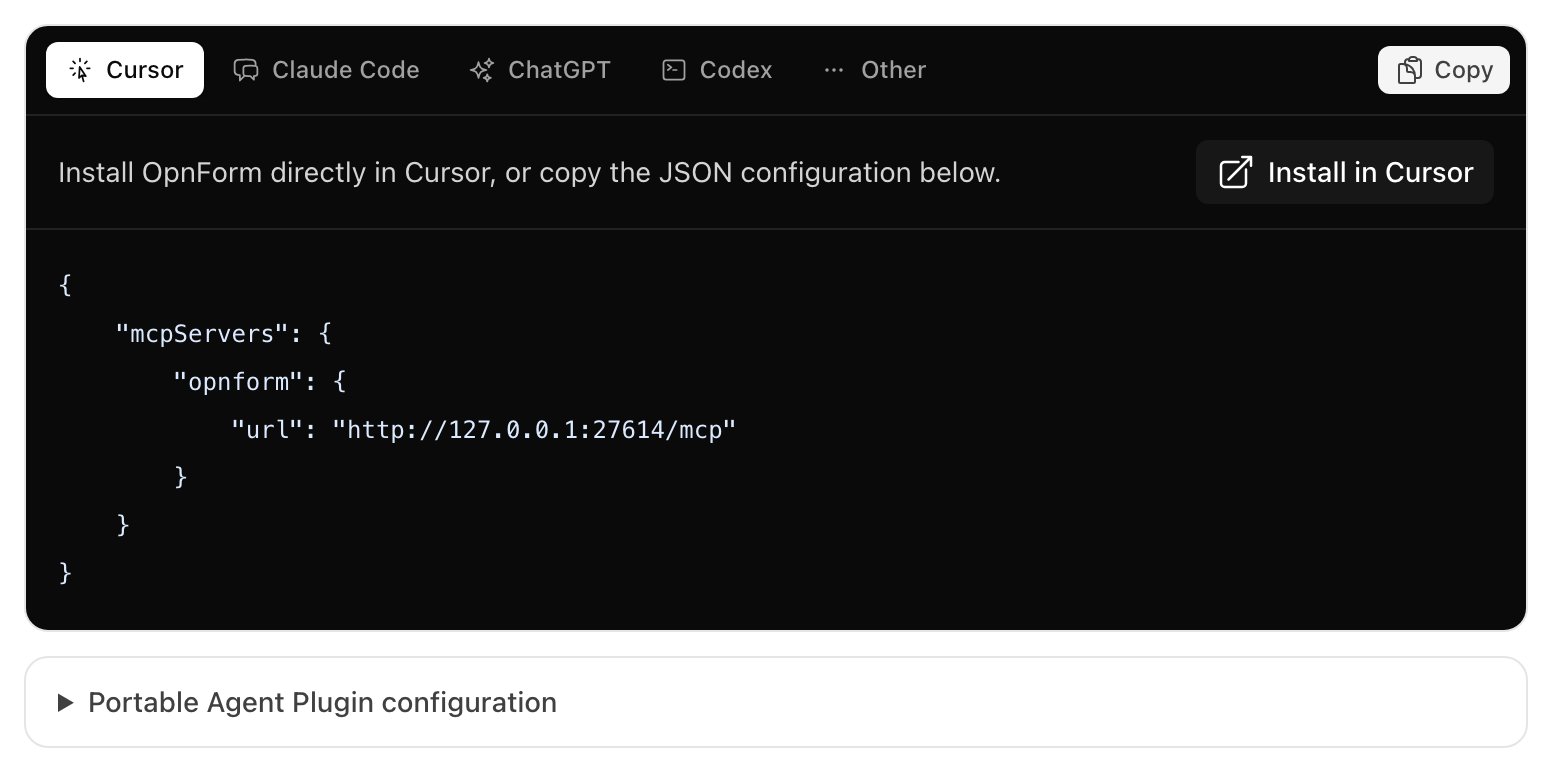 Use **Install in Cursor** for one-click setup, or copy the generated `mcpServers` JSON configuration.
For OpnForm Cloud, run:
```bash theme={null}
claude mcp add --transport http opnform https://api.opnform.com/mcp
```
Replace the URL with your own `/mcp` endpoint when you use a self-hosted instance.
On a plan that supports custom MCP apps, enable [ChatGPT developer mode](https://help.openai.com/en/articles/12584461-developer-mode-and-full-mcp-connectors-in-chatgpt), create an app, and paste the server URL. Select OAuth when prompted. ChatGPT discovers the authorization metadata from the endpoint.
ChatGPT plan and workspace controls determine whether custom apps and write actions are available. An administrator may need to enable developer mode before you can add the server.
For OpnForm Cloud, run:
```bash theme={null}
codex mcp add opnform --url https://api.opnform.com/mcp
```
Replace the URL with your own `/mcp` endpoint when you use a self-hosted instance.
Use a streamable HTTP configuration in any OAuth-capable MCP client:
```json theme={null}
{
"mcpServers": {
"opnform": {
"type": "http",
"url": "https://api.opnform.com/mcp"
}
}
}
```
Open **Portable Agent Plugin configuration** in OpnForm settings if your client supports [Agent Plugins](https://agent-plugins.org).
To share instructions for a particular client, include the selected client in the settings URL:
```text theme={null}
https://opnform.com/?user-settings=mcp&agent=cursor
```
On self-hosted instances, replace `https://opnform.com` with your frontend URL. Supported `agent` values are `cursor`, `claude_code`, `chatgpt`, `codex`, and `other`.
## Authenticate your OpnForm account
Form, workspace, and submission tools use OAuth. The MCP client discovers OpnForm's authorization metadata, opens the OpnForm consent screen, and uses authorization code flow with PKCE `S256`. You never paste an OpnForm password or access token into a conversation.
On OpnForm Cloud, guest form creation and preview remain available before authentication. On self-hosted instances, guest draft creation is unavailable. Schema resources, the field catalog, and `validate_form_definition` remain available before authentication because they do not read or store account data.
After authenticating a Codex connection, start a new conversation with OpnForm selected so the MCP client loads the stored credential.
A connected user can revoke the current access and refresh tokens by sending an authenticated `DELETE` request to `/mcp-oauth/session`.
## Available capabilities
| Capability | OpnForm Cloud | Self-hosted |
| --------------------------------------- | ------------------------------- | ------------------------------- |
| Create and preview a guest draft | Available without an account | Not available |
| Validate a form definition | Available before authentication | Available before authentication |
| List accessible workspaces | OAuth required | OAuth required |
| List, inspect, create, and update forms | OAuth required | OAuth required |
| Publish or move a form to trash | OAuth and explicit confirmation | OAuth and explicit confirmation |
| Search, analyze, and export submissions | OAuth required, read-only | OAuth required, read-only |
| Enable or disable the MCP server | Managed by OpnForm | Self-hosted administrator |
Workspace administration and submission mutations are unavailable. MCP does not expose permanent form deletion, form restoration, submission deletion, or submission restoration.
Normal workspace permissions and plan limits continue to apply. If saving a form disables unavailable premium features, the tool response lists those changes.
## Self-hosted OAuth configuration
The following settings apply only to self-hosted instances.
Configure the callback destinations accepted by your instance:
| Variable | Purpose |
| ---------------------------- | ----------------------------------------------------------------------------------------------- |
| `MCP_OAUTH_REDIRECT_DOMAINS` | Comma-separated HTTPS or loopback callback origins accepted during dynamic client registration. |
| `MCP_OAUTH_CUSTOM_SCHEMES` | Comma-separated callback URI schemes accepted for trusted native clients. |
| `MCP_AUTHORIZATION_SERVER` | Optional external authorization-server URL advertised by MCP discovery. |
The consent screen displays the callback destination before approval.
OAuth authorization requests and login tickets use atomic cache locks. If you run multiple application instances, configure Laravel's default cache as a shared, lock-capable store such as Redis or DynamoDB. File and array cache drivers are suitable only for single-instance development.
## Self-hosted rate limits
The default limits are permissive for normal agent use:
| Variable | Default | Scope |
| ------------------------------------ | ------: | ------------------------------------------------------------- |
| `MCP_RATE_LIMIT_PER_MINUTE` | `120` | All MCP requests, per OAuth user or unauthenticated client IP |
| `MCP_RATE_LIMIT_PER_HOUR` | `3000` | All MCP requests, per OAuth user or unauthenticated client IP |
| `MCP_SUBMISSION_EXPORTS_PER_MINUTE` | `5` | Exports, per user and form |
| `MCP_SUBMISSION_EXPORTS_PER_HOUR` | `30` | Exports, per user and form |
| `FORM_SUMMARY_RATE_LIMIT_PER_MINUTE` | `30` | REST and MCP submission summaries, shared per user |
## Privacy and observability
When `MCP_OBSERVABILITY_ENABLED=true`, a self-hosted instance records only the MCP method, tool name, authentication mode, outcome, HTTP status, and duration.
OpnForm does not include request arguments, OAuth tokens, form definitions, submission values, export URLs, user identifiers, or IP addresses in MCP telemetry or structured MCP request logs.
Set `MCP_OBSERVABILITY_ENABLED=false` to disable MCP usage events and their structured logs. General anonymous instance telemetry remains controlled by `OPNFORM_ANONYMOUS_TELEMETRY_DISABLED`.
## Troubleshooting
This switch appears only on self-hosted instances. Verify that `APP_URL` and `FRONT_URL` use public HTTPS origins and that the API container can read a persistent Passport key pair. Reload the settings page after correcting the configuration.
Complete the OAuth flow from the MCP client. Guest drafts on OpnForm Cloud do not authenticate your account automatically.
Start a new conversation after authentication. Some clients retain the tool and authentication state that existed when the conversation started.
Ask the assistant to create a fresh preview. Preview links are private and expire automatically.
Check the client callback against `MCP_OAUTH_REDIRECT_DOMAINS` and `MCP_OAUTH_CUSTOM_SCHEMES`. Also verify that `APP_URL`, `FRONT_URL`, and reverse-proxy forwarding headers reflect the public origins.
Confirm that your `/mcp` endpoint is reachable from outside your private network, that your reverse proxy allows streamable HTTP responses, and that no firewall or authentication proxy blocks MCP discovery requests.
## Agent safety behavior
* Fetch the current form revision before updating, publishing, or trashing it.
* Re-fetch and reconcile the form after a revision conflict.
* Ask before publishing or moving a form to the trash.
* Use submission data only when it is necessary for the user's request.
* Respect validation, workspace permissions, plan cleaning, and rate limits.
Use **Install in Cursor** for one-click setup, or copy the generated `mcpServers` JSON configuration.
For OpnForm Cloud, run:
```bash theme={null}
claude mcp add --transport http opnform https://api.opnform.com/mcp
```
Replace the URL with your own `/mcp` endpoint when you use a self-hosted instance.
On a plan that supports custom MCP apps, enable [ChatGPT developer mode](https://help.openai.com/en/articles/12584461-developer-mode-and-full-mcp-connectors-in-chatgpt), create an app, and paste the server URL. Select OAuth when prompted. ChatGPT discovers the authorization metadata from the endpoint.
ChatGPT plan and workspace controls determine whether custom apps and write actions are available. An administrator may need to enable developer mode before you can add the server.
For OpnForm Cloud, run:
```bash theme={null}
codex mcp add opnform --url https://api.opnform.com/mcp
```
Replace the URL with your own `/mcp` endpoint when you use a self-hosted instance.
Use a streamable HTTP configuration in any OAuth-capable MCP client:
```json theme={null}
{
"mcpServers": {
"opnform": {
"type": "http",
"url": "https://api.opnform.com/mcp"
}
}
}
```
Open **Portable Agent Plugin configuration** in OpnForm settings if your client supports [Agent Plugins](https://agent-plugins.org).
To share instructions for a particular client, include the selected client in the settings URL:
```text theme={null}
https://opnform.com/?user-settings=mcp&agent=cursor
```
On self-hosted instances, replace `https://opnform.com` with your frontend URL. Supported `agent` values are `cursor`, `claude_code`, `chatgpt`, `codex`, and `other`.
## Authenticate your OpnForm account
Form, workspace, and submission tools use OAuth. The MCP client discovers OpnForm's authorization metadata, opens the OpnForm consent screen, and uses authorization code flow with PKCE `S256`. You never paste an OpnForm password or access token into a conversation.
On OpnForm Cloud, guest form creation and preview remain available before authentication. On self-hosted instances, guest draft creation is unavailable. Schema resources, the field catalog, and `validate_form_definition` remain available before authentication because they do not read or store account data.
After authenticating a Codex connection, start a new conversation with OpnForm selected so the MCP client loads the stored credential.
A connected user can revoke the current access and refresh tokens by sending an authenticated `DELETE` request to `/mcp-oauth/session`.
## Available capabilities
| Capability | OpnForm Cloud | Self-hosted |
| --------------------------------------- | ------------------------------- | ------------------------------- |
| Create and preview a guest draft | Available without an account | Not available |
| Validate a form definition | Available before authentication | Available before authentication |
| List accessible workspaces | OAuth required | OAuth required |
| List, inspect, create, and update forms | OAuth required | OAuth required |
| Publish or move a form to trash | OAuth and explicit confirmation | OAuth and explicit confirmation |
| Search, analyze, and export submissions | OAuth required, read-only | OAuth required, read-only |
| Enable or disable the MCP server | Managed by OpnForm | Self-hosted administrator |
Workspace administration and submission mutations are unavailable. MCP does not expose permanent form deletion, form restoration, submission deletion, or submission restoration.
Normal workspace permissions and plan limits continue to apply. If saving a form disables unavailable premium features, the tool response lists those changes.
## Self-hosted OAuth configuration
The following settings apply only to self-hosted instances.
Configure the callback destinations accepted by your instance:
| Variable | Purpose |
| ---------------------------- | ----------------------------------------------------------------------------------------------- |
| `MCP_OAUTH_REDIRECT_DOMAINS` | Comma-separated HTTPS or loopback callback origins accepted during dynamic client registration. |
| `MCP_OAUTH_CUSTOM_SCHEMES` | Comma-separated callback URI schemes accepted for trusted native clients. |
| `MCP_AUTHORIZATION_SERVER` | Optional external authorization-server URL advertised by MCP discovery. |
The consent screen displays the callback destination before approval.
OAuth authorization requests and login tickets use atomic cache locks. If you run multiple application instances, configure Laravel's default cache as a shared, lock-capable store such as Redis or DynamoDB. File and array cache drivers are suitable only for single-instance development.
## Self-hosted rate limits
The default limits are permissive for normal agent use:
| Variable | Default | Scope |
| ------------------------------------ | ------: | ------------------------------------------------------------- |
| `MCP_RATE_LIMIT_PER_MINUTE` | `120` | All MCP requests, per OAuth user or unauthenticated client IP |
| `MCP_RATE_LIMIT_PER_HOUR` | `3000` | All MCP requests, per OAuth user or unauthenticated client IP |
| `MCP_SUBMISSION_EXPORTS_PER_MINUTE` | `5` | Exports, per user and form |
| `MCP_SUBMISSION_EXPORTS_PER_HOUR` | `30` | Exports, per user and form |
| `FORM_SUMMARY_RATE_LIMIT_PER_MINUTE` | `30` | REST and MCP submission summaries, shared per user |
## Privacy and observability
When `MCP_OBSERVABILITY_ENABLED=true`, a self-hosted instance records only the MCP method, tool name, authentication mode, outcome, HTTP status, and duration.
OpnForm does not include request arguments, OAuth tokens, form definitions, submission values, export URLs, user identifiers, or IP addresses in MCP telemetry or structured MCP request logs.
Set `MCP_OBSERVABILITY_ENABLED=false` to disable MCP usage events and their structured logs. General anonymous instance telemetry remains controlled by `OPNFORM_ANONYMOUS_TELEMETRY_DISABLED`.
## Troubleshooting
This switch appears only on self-hosted instances. Verify that `APP_URL` and `FRONT_URL` use public HTTPS origins and that the API container can read a persistent Passport key pair. Reload the settings page after correcting the configuration.
Complete the OAuth flow from the MCP client. Guest drafts on OpnForm Cloud do not authenticate your account automatically.
Start a new conversation after authentication. Some clients retain the tool and authentication state that existed when the conversation started.
Ask the assistant to create a fresh preview. Preview links are private and expire automatically.
Check the client callback against `MCP_OAUTH_REDIRECT_DOMAINS` and `MCP_OAUTH_CUSTOM_SCHEMES`. Also verify that `APP_URL`, `FRONT_URL`, and reverse-proxy forwarding headers reflect the public origins.
Confirm that your `/mcp` endpoint is reachable from outside your private network, that your reverse proxy allows streamable HTTP responses, and that no firewall or authentication proxy blocks MCP discovery requests.
## Agent safety behavior
* Fetch the current form revision before updating, publishing, or trashing it.
* Re-fetch and reconcile the form after a revision conflict.
* Ask before publishing or moving a form to the trash.
* Use submission data only when it is necessary for the user's request.
* Respect validation, workspace permissions, plan cleaning, and rate limits.